
Feature Overview
library
Section titled “library”The library manages the comic translation projects you create. Each comic contains volumes, chapters, and images. Click the plus button to create a comic and set its source and target languages.
Editor
Section titled “Editor”The editor is where you translate comic images:
- Add, move, resize, delete, and reorder text blocks.
- Edit the source and translated text of a text block.
- Run Detect Text Block, Extract Text, Extract Image Summary, Translate, and other actions.
- Keyboard shortcuts on desktop.
Batch processing
Section titled “Batch processing”Batch processing runs multiple automation steps over selected images. Each step can be enabled separately, with its own model and processing scope.
It is useful for a whole chapter or volume. Before starting, confirm that the overwrite settings for existing content match what you expect.
Service Profile
Section titled “Service Profile”Service Profile contains three kinds of services:
- Generic AI: configuration for the model endpoints used by Extract Text, Extract Image Summary, and Translate.
- Detect Text Block: configuration for the model endpoints used to find text blocks.
- Extract Text: configuration for the model endpoints used to extract text from text blocks.
A single Generic AI profile may contain multiple models. A model’s capabilities determine which editor actions can use it.
Glossaries
Section titled “Glossaries”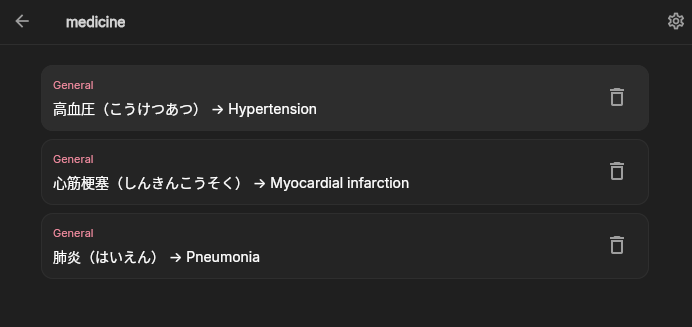
Glossaries provide preferred translations for names, places, organizations, and recurring expressions, and also support do-not-translate terms and forbidden terms. A glossary is a global resource and has to be applied to a specific comic.
Reader
Section titled “Reader”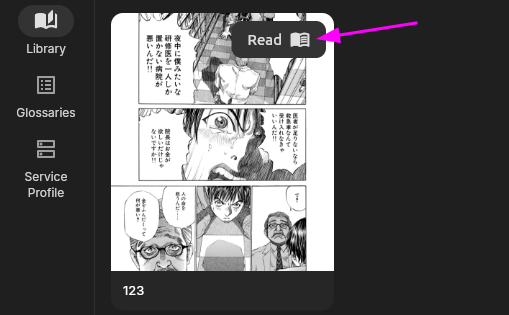
The reader is for reading comics you have finished translating. It supports continuous scrolling mode, paged mode, reading direction, zoom, chapter navigation, hiding translations, and other features and custom settings.
Export
Section titled “Export”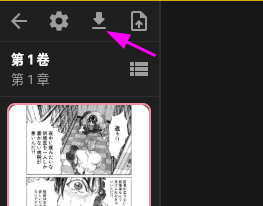
The current export options are:
- LabelPlus TXT (can be imported into Photoshop/InDesign with a script for further editing)
- a ZIP containing the LabelPlus TXT and original images
Task overlay
Section titled “Task overlay”Running tasks appear in the global task overlay. The overlay shows task progress and errors, and supports retrying or cancelling tasks. Batch jobs also let you inspect how each step is running.