
Reader
Open the reader
Section titled “Open the reader”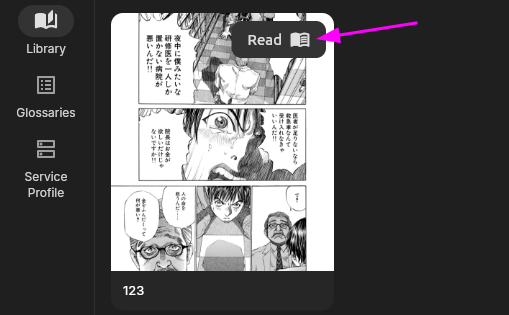
You can open the reader from the read button in the top-right corner of a comic project. Pages are displayed in volume, chapter, and image order. The reader saves the last-read page for each comic and restores it the next time you open the reader.
Browsing modes
Section titled “Browsing modes”The reader supports:
- horizontal continuous scrolling;
- vertical continuous scrolling;
- horizontal paging;
- vertical paging.
Continuous modes are useful for long pages. Paged modes show one page at a time and let you turn pages by tapping a zone or swiping.
Reading direction
Section titled “Reading direction”Horizontal modes can read left-to-right or right-to-left. Vertical modes can read top-to-bottom or bottom-to-top. In paged modes, the forward tap zone follows the selected direction. If it feels reversed, invert the tap zones in the reader settings.
On desktop, you can also scroll or turn pages with the mouse wheel. If it feels reversed, invert the wheel direction in the settings.
Zoom and pan
Section titled “Zoom and pan”On mobile, pinch to zoom and drag with one finger while zoomed. On desktop, use mouse dragging and Alt/Opt + wheel to zoom.
Click the question mark button in the settings to see the full list of input methods for the current platform.
The reset button at the bottom center returns the page to fit-to-screen. Paged modes can also keep the zoom level when turning pages.
Menu and chapters
Section titled “Menu and chapters”Tap the top area to open the reader menu. Use it to change browsing mode, direction, chapter, and display options.
Display options
Section titled “Display options”The reader can be customized:
- Whether the original/translation toggle button is shown.
- Text-block fill color and opacity.
- Minimum text size.
- Forced text orientation and reading direction.
Direction settings take priority as follows: reader settings > text-block properties > comic default settings.