
Quick Start Guide
Neko Translator is an AI-powered assistant for translating comics and manga.
Whether you are a reader translating foreign-language comics or a professional translator, you can use it as a platform for your translation work.
This guide walks you through installation, configuration, and connecting to online model APIs.
A note on token usage
Section titled “A note on token usage”Neko Translator itself is free, but the third-party model APIs it connects to may charge you. In our tests, typical translation jobs do not cost much:
- With gemma4-31b-it from OpenRouter as the vision model (reasoning disabled), recognizing around 1,000 text boxes/images costs about US$0.089.
- With deepseek-v4-flash from DeepSeek’s official API (reasoning enabled), translating 50 comic pages costs about US$0.074.
- If you have a powerful GPU, connecting a local model is also a good way to avoid these costs.
Note: Run a small test translation first and keep an eye on your token usage so you don’t run up unexpected charges. If your provider supports it, we also recommend setting a spending limit on the API key.
Install Neko Translator
Section titled “Install Neko Translator”Visit our website in a browser to download Neko Translator.
Configure services
Section titled “Configure services”This guide recommends and uses google/gemma-4-31b-it as the vision model and deepseek/deepseek-v4-flash with reasoning enabled as the translation model.
Create an OpenRouter account and API key
Section titled “Create an OpenRouter account and API key”- Visit OpenRouter and sign in or create an account.
- If you plan to use paid models, add funds on the Credits page.
- Open the Keys page and select Create Key.
- Give the key a recognizable name, create it, then copy the key and store it securely. You will only need to paste it into Neko Translator once.
Configure Neko Translator
Section titled “Configure Neko Translator”Return to Neko Translator and open Service Profiles.
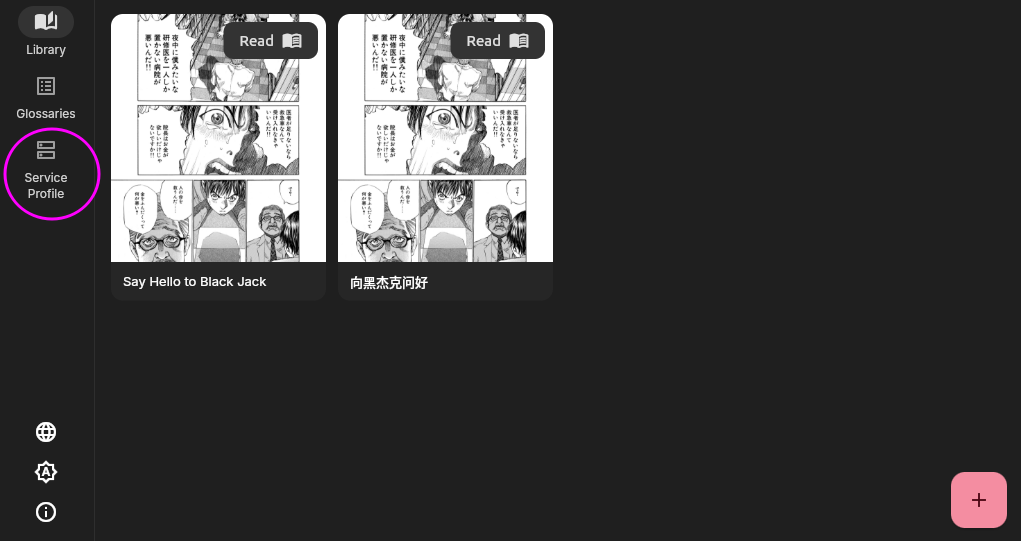
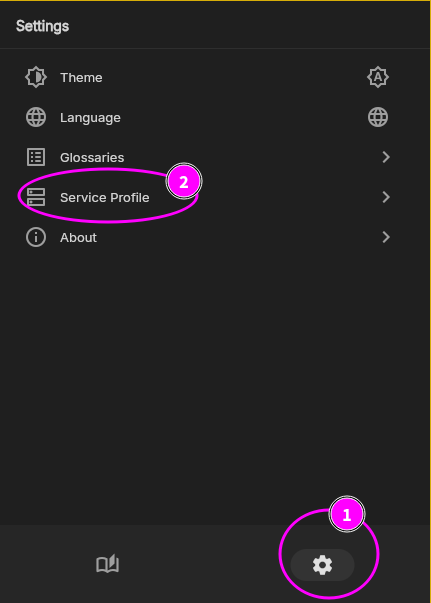
First, configure OpenRouter API:
- Under General AI API, select + Add and choose OpenRouter.
- Paste the API key beginning with
skthat you copied earlier. - Keep the preconfigured model preset unchanged.
- Save the profile.
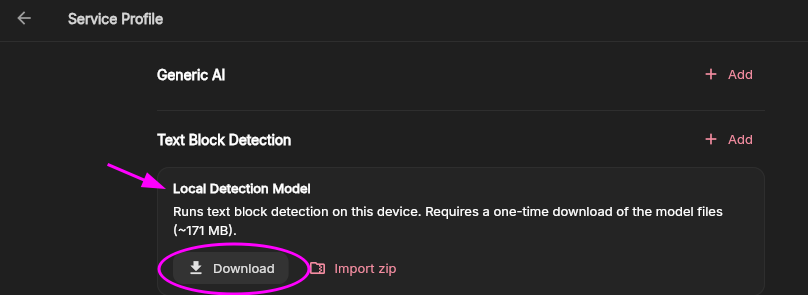
Next, configure Local Detection Model:
- Under Text Block Detection - Local Detection Model, Click Download
- Choose a download source
- Once the download completes, setup is finished.
Test the setup
Section titled “Test the setup”After configuration, test that each stage works as expected:
- Add a comic, then upload one or more comic pages.
- Click Detect Text Blocks in Image, then select Extract Text from Text Blocks when detection is complete. If text boxes and their source text are detected, text block detection is configured correctly.
- Click Parsing Image Content. A check mark on the icon confirms that image analysis is configured correctly.
- Click Translate All Text Blocks. If translations are generated, the translation model is configured correctly.
Comic source: Say Hello to Black Jack by Shuho Sato.
Batch processing
Section titled “Batch processing”Once you have confirmed that the configuration works correctly, you can run the full workflow for an entire comic automatically.
- Click the ✨ icon to open Batch Processing. By default, all images and all automated actions are selected.
- Click Start and wait for processing to finish.
Tip: The current setup uses the Local Text Block Detector. It can only Detect Text Blocks in Image, not Extract Text from Text Blocks, so you need to run every automated step.
Models such as PaddleOCR VL 1.6 also extract text during detection. If you use PaddleOCR VL 1.6, disable the separate text-extraction action to avoid doing the work twice and complete processing more quickly.
Automated workflow and models
Section titled “Automated workflow and models”Neko Translator’s comic translation workflow consists of the following stages:
- Text block detection finds text regions and creates text boxes. Some models also extract the text at this stage.
- Text extraction reads the source text in each text box. This requires a vision-capable multimodal model or a dedicated OCR model.
- Image parsing describes the image contents as text to provide translation context. This requires a vision-capable multimodal model.
- Translation uses the context to translate the source text in the detected text boxes. This requires a large language model.
The corresponding automation buttons appear in the comic editor. Their available actions depend on the capabilities of the models configured in Service Profiles:
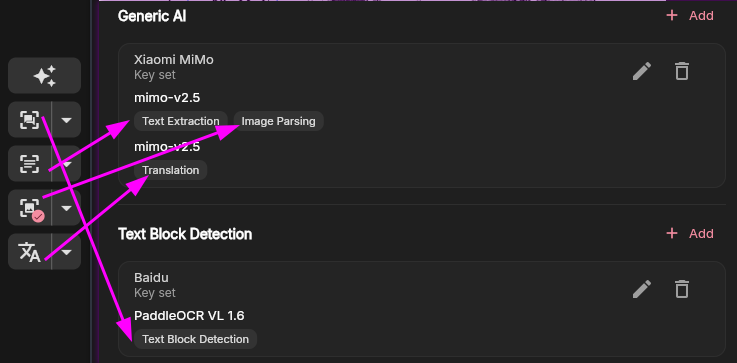
General AI connects to current large-language-model APIs:
- Most models can translate text.
- Models with vision capabilities can also perform text extraction and image analysis.
Text block detection requires specially supported models. The currently supported options are:
- Local text block detector: download the model and use it directly to find text regions from comic pages, completely free and offline (Recommanded)
- PaddleOCR VL 1.6: requires an API.
- GLM-OCR: requires an API.
Get help
Section titled “Get help”If you run into configuration problems or have suggestions, join the community discussion on Discord.